Value your time? Get a high-level overview:
 Ask ChatGPT
 Ask Grok
 Ask Perplexity
 Ask Claude
 Ask Google AI
- Fix these three settings before anything else: match your time zone to your business location, turn Enhanced Measurement ON, and extend data retention from the two-month default to 14 months — skip any of these and you will be redoing your setup later, with weeks of data already lost.
- GA4 tracks individual actions, not just visits: page views, clicks, scrolls, and downloads are each logged as a separate event, and Enhanced Measurement captures most of them automatically with no code required.
- Check the right acquisition report for the question you’re asking: User Acquisition shows how a visitor first found your site; Traffic Acquisition shows where today’s visit came from. Checking only one — especially right after a campaign — gives you half the picture.
- What should you actually do with this data? Sort Traffic Acquisition by Engagement Rate to find your best-performing channels, check the Pages and Screens report for high-traffic pages that convert no one, and mark only meaningful actions — leads, purchases, sign-ups — as Key Events instead of tracking everything. If your GA4 account still needs to be set up or audited properly, get in touch with our team.

Google Analytics 4 helps you answer three practical questions: which channels bring visitors, what those visitors do on the site, and which actions become leads or revenue. This guide covers a basic GA4 setup for a small business website, the reports worth checking first, and the events you should define before judging performance.
Before you start. Confirm you have a GA4 property, a consent/CMP setup, a web data stream, a Google tag or GTM container, excluded internal traffic, and 3–5 agreed conversions. Interface labels below were last checked against GA4 in 2026; Google moves menu items, so treat screenshots as orientation rather than a permanent map.
Google Analytics (GA4) is the tool that turns those lights on, revealing exactly who is visiting your site, how they discovered you, and what they are actually doing once they arrive.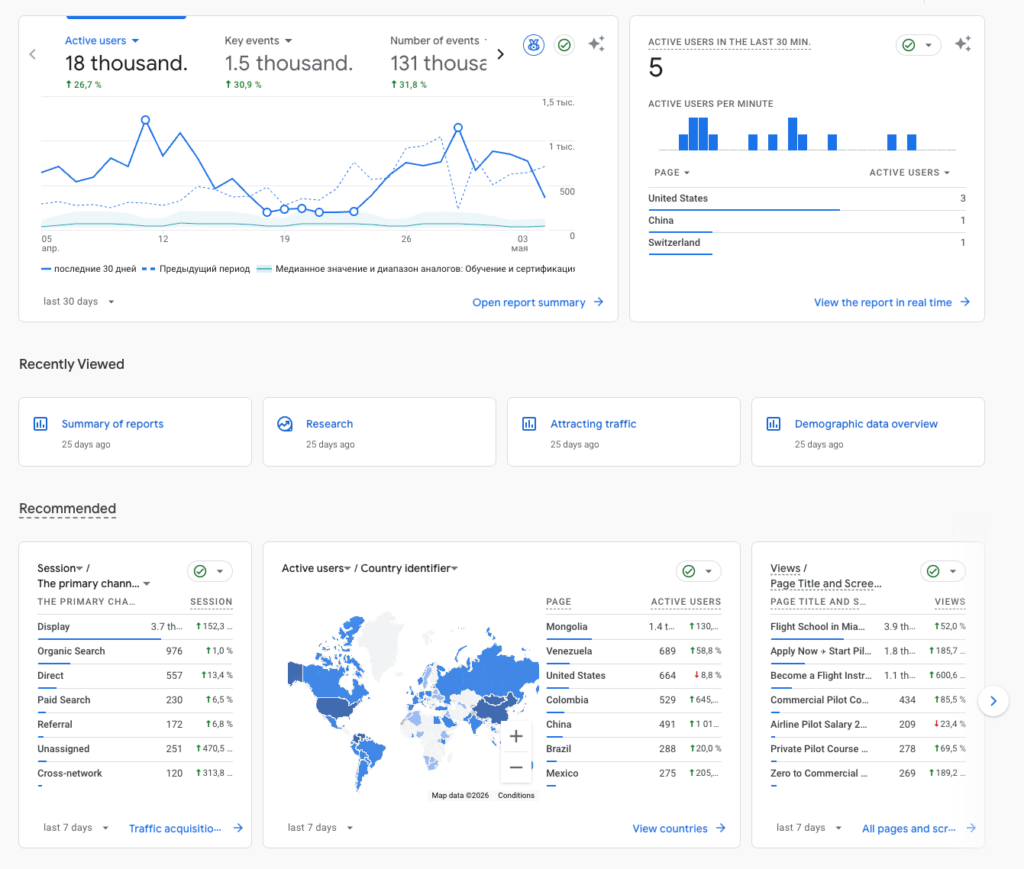
If you are starting, GA4 is a free web analytics service from Google that helps you track and measure user traffic and behavior. It has become the global standard, replacing the older Universal Analytics system.
While the old system focused on sessions, or simple visits, GA4 uses an event-based model. This means that every single interaction—a page view, a button click, a video play, or a file download—is treated as a unique event. This approach gives you a holistic view of the customer journey across devices and platforms, so you can stop guessing and start making decisions based on real data.
In this guide, we will skip the technical jargon and get straight to the essentials: setting up your account correctly and finding the insights that will help your website grow.
Preparing for Launch
Before you rush to paste code into your website, you need to understand the skeleton of GA4. If you get the structure wrong now, your data will be a mess later. Setting a solid foundation prevents headaches when you try to interpret your reports later.
The Filing Cabinet
Think of Google Analytics hierarchy as a filing cabinet:
- The Account. This is the entire cabinet—usually named after your company. It is the top-level container for everything.
- The Property. This represents a specific drawer inside, typically representing your website or mobile app. The beauty of GA4 is that one Property can hold data from both your website and your mobile app simultaneously. This allows you to see a unified view of how users switch between devices during their journey.
Data Streams
To get data into that drawer, you need a Data Stream. This is a digital pipeline connecting your website to Analytics. When you create a Web Data Stream, Google assigns you a unique Measurement ID (e.g., G-XXXXXXXXXX). This ID is your website’s unique fingerprint; without it, Google doesn’t know where to send the information.
The Don’t-Forget Checklist
There are three small settings that beginners often miss, which cause significant problems later:
- Time Zone & Currency. Ensure these match your actual business location. If your store is in London but your Analytics is set to New York time, your traffic reports will be misaligned with your actual business hours.
- Enhanced Measurement. Ensure this is toggled ON in your data stream settings. This allows GA4 to automatically track actions like scrolls, outbound clicks, and video views without you needing to write a single line of custom code.
- Data Retention. This is a critical step many miss. By default, GA4 often sets user-level data retention to only two months. To perform year-over-year comparisons or analyze long-term trends, you should change this to 14 months immediately in the Admin settings.
If you plan on running ads or using heatmaps in the future, start with Google Tag Manager now. It has a steeper learning curve for the first 15 minutes, but it will save you hours of technical frustration down the road when you need to add more tracking tools to your site.
— Andrew Antokhin, Founder of Inverox Digital
Installation Deep Dive
Now that your property is ready, it’s time to connect it to your website. This is the moment you actually cast your net. Without this technical link, Google Analytics remains an empty shell. There are several ways to do this, depending on your technical comfort level and the platform you use.
Finding Your Measurement ID
Before you can install anything, you need your unique fingerprint.
- Go to Admin and under Property Settings, select Data Streams.
- Choose your Web stream.
- Look for the Measurement ID in the top right corner (it starts with
G-). Copy this—you will need it for almost any installation method.
Option A. Using a CMS Plugin
If you are using a platform like WordPress, you don’t need to touch a single line of code.
- Install a plugin such as GA Google Analytics.
- Navigate to the plugin settings in your dashboard.
- Paste your Measurement ID into the designated box.
- Choose the Global Site Tag (gtag.js) as your tracking method and save changes.
Option B. Native Integration
Most modern website builders have a built-in spot for Google Analytics.
- Wix. Go to Marketing Integrations, find Google Analytics, click Connect, and paste your Measurement ID.
- Shopify/Squarespace. Similar options exist in their external service or SEO settings menus.
Option C. Manual Installation
If you prefer not to use a plugin or your site is custom-built, you can add the script directly.
- In the Web Stream Details screen in GA4, click on View tag instructions.
- Select Install manually. You will see a block of code starting with a
<script>tag. - Copy this entire block and paste it immediately after the
<head>tag on every page of your website.
Option D. Google Tag Manager (GTM)
While slightly more advanced, GTM is the preferred method for many pros because it acts as a hub for all your marketing tags (Facebook, Google Ads, etc.) without cluttering your website’s code. Create a GA4 Configuration Tag in GTM, paste your ID, and set it to fire on all pages.
Interface & Vocabulary
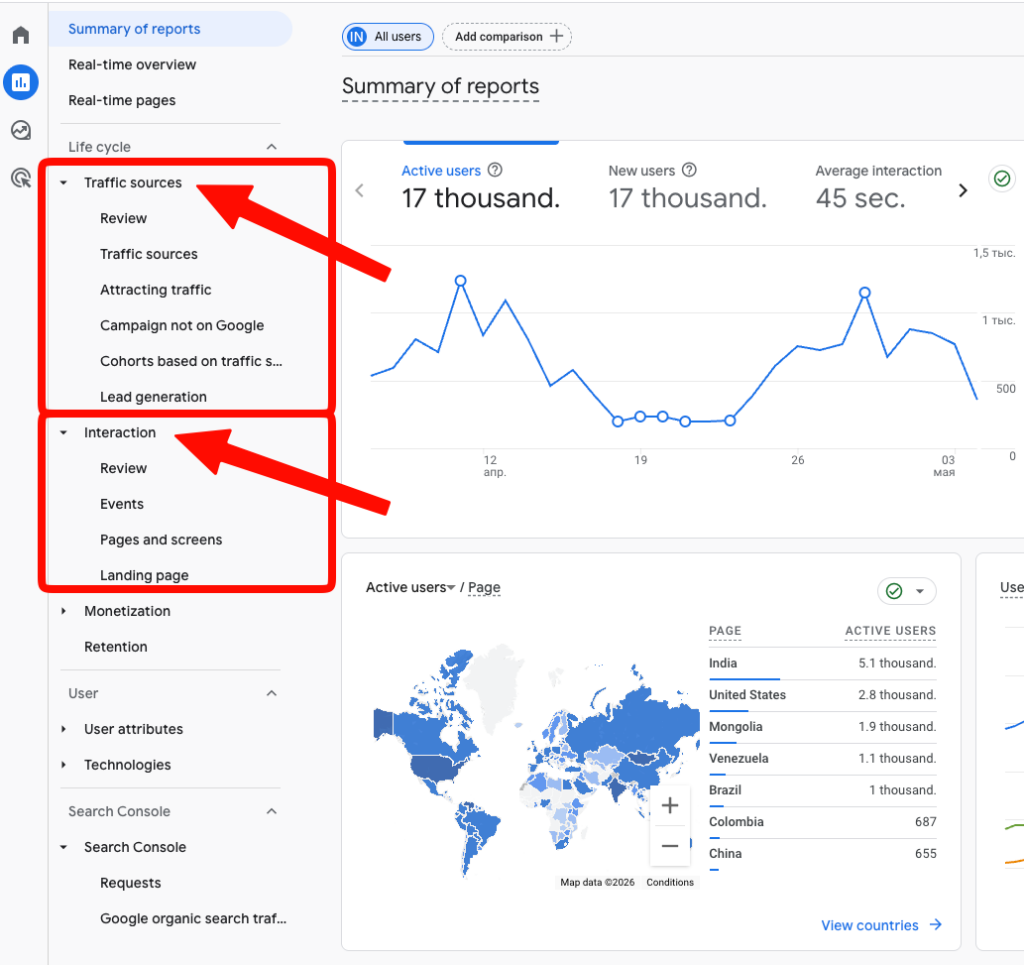
Once you log into GA4, you may have stepped into the cockpit of a jet. The labels are different, and the way data is presented has changed fundamentally from older versions of Analytics. To use this tool effectively, you need to speak its language.
The Everything-Is-an-Event Model
In the past, web analytics separated page views, transactions, and clicks into different categories. In GA4, everything is an event.
- A user viewing a page is a page_view event.
- A user clicking an outbound link is a click event.
- A user scrolling to the bottom of a page is a scroll event.
- By treating every action as an event, GA4 provides a more granular view of how users engage with your content.
New Metrics You Need to Know
GA4 introduces a few metrics that focus on engagement rather than just visits.
- Engagement Rate. This is the percentage of engaged sessions on your site. A session is considered engaged if it lasts longer than 10 seconds, has a conversion event, or has at least two page views.
- Average Engagement Time. This tells you how long your website was actually in the foreground of a user’s browser. It’s a much better indicator of interest than the old Time on Page metric.
Forget about Bounce Rate. In GA4, Engagement Rate is your new best friend. It tells you the percentage of people who actually found what they were looking for. If this number is low, it’s a clear signal that your content isn’t meeting the user’s expectations or your page is taking too long to load.
— Andrew Antokhin, Founder of Inverox Digital
Navigating the Menu
The left-hand sidebar is your map. For beginners, the most important section is the Reports icon (a small bar chart). Here you will find the Life Cycle collection, which is organized by the journey a customer takes:
- Acquisition. How did they find you?
- Engagement. What did they do?
- Monetization. Did they buy anything?
- Retention. Do they come back?
Analyzing Your Traffic
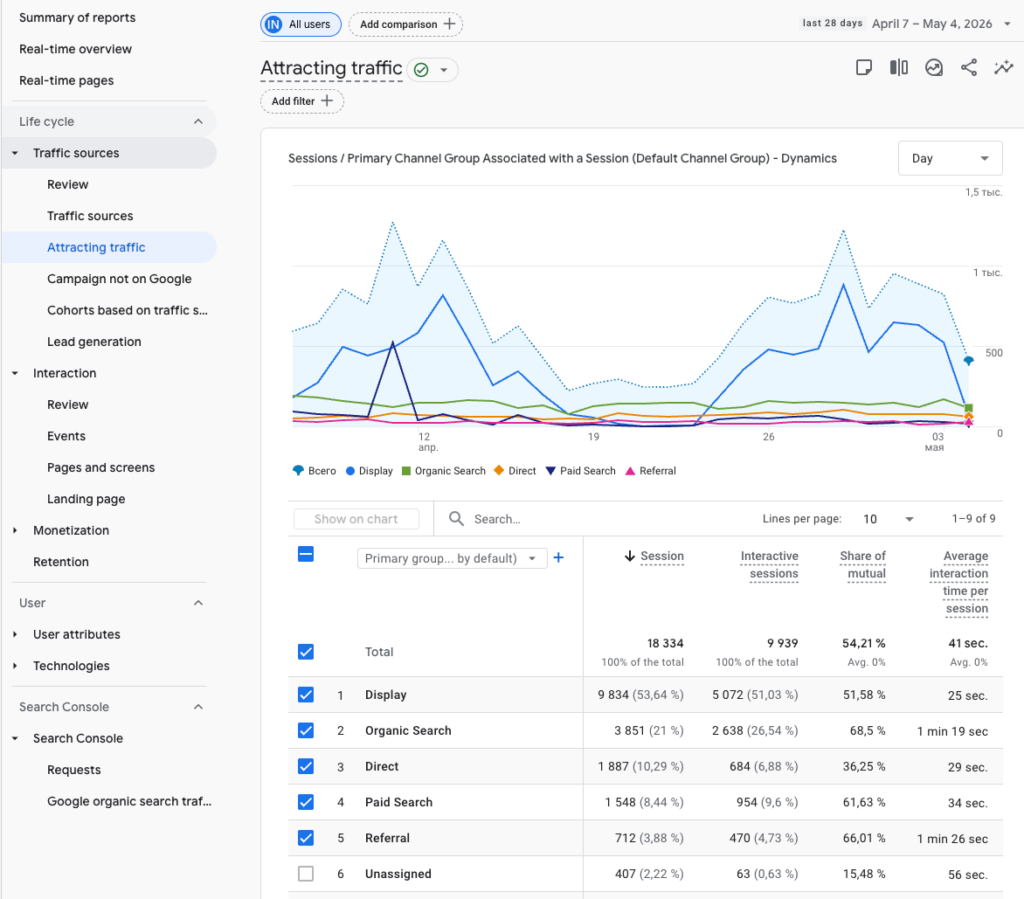
Now that you speak the language, it’s time to answer the most important question for any site owner: how are people actually finding me? The Acquisition reports are your primary hub for this data. In GA4, Google splits this view into two distinct reports that often confuse beginners. Let’s break them down.
User Acquisition vs. Traffic Acquisition
- User Acquisition. This report focuses on the First user medium. It tells you how people first discovered your website. If someone first found you through a Google search six months ago, they will always appear as Organic Search in this report, regardless of how they returned today.
- Traffic Acquisition. This report is based on sessions. It tells you where your traffic is coming from during their current visit. It is the best place to see the immediate impact of a recent email campaign or a social media post.
Source, Medium, and Campaign
To read these reports like a pro, you need to understand the three layers of traffic data:
- Source. The specific place the traffic came from (e.g., google, facebook, newsletter).
- Medium. The high-level channel or category of the traffic (e.g., organic for unpaid search, cpc for paid ads, or referral for links from other sites).
- Campaign. The specific marketing effort that drove the visit (e.g., summer_sale_2024).
How to Find Your Best Channels
To see which channels are performing best, go to Reports > Acquisition > Traffic acquisition. By default, the table shows the Session default channel group. Look for the channels with the highest Engagement Rate and Events per Session. This tells you not just who is bringing in the most people, but who is bringing in the right people who actually stay and interact with your site.
Most beginners get stuck looking only at Traffic Acquisition because it shows what’s happening today. But if you want to know which marketing efforts are best at hooking new customers for the long term, you have to master the User Acquisition report. It reveals the true origin story of your audience.
— Andrew Antokhin, Founder of Inverox Digital
Conversions and Events
If traffic is the fuel for your website, then conversions are the destination. You don’t just want people to visit; you want them to take action. In Google Analytics 4, everything starts with Events, and the most important events are labeled as Conversions (now often called Key Events in the newest interface updates).
The Power of Enhanced Measurement
One of the best beginner-friendly features of GA4 is Enhanced Measurement. When you set up your web data stream, Google Analytics automatically begins tracking several high-value interactions without any additional coding on your part. These include:
- Scrolls. Triggered when a visitor reaches the bottom (90%) of a page.
- Outbound Clicks. Tracking whenever a user clicks a link that leads away from your website.
- Site Search. Capturing what people are typing into your website’s search bar.
- Video Engagement. Tracking when people start, progress through, or finish a video embedded on your site.
- File Downloads. Automatically logging when someone clicks a link for a PDF, document, or zip file.
How to Create a Conversion
While GA4 tracks many things automatically, it doesn’t know which specific action is a win for your business. You have to tell it.
- Navigate to the Admin panel (bottom left gear icon).
- Under Data display, click on Events.
- You will see a list of all the events GA4 has already collected.
- Find the event you want to count as a conversion (for example, file_download or first_visit).
Slide the toggle under the Mark as conversion column to the ON position.
The Mark as conversion toggle is the most underrated tool in GA4. Beginners often think they need complex coding to track goals, but for many basic actions, it’s just a one-click process. My advice: don’t track everything as a conversion—only mark the actions that represent real value, like a lead generated or a checkout started.
— Andrew Antokhin, Founder of Inverox Digital
Putting Data to Work
Setting up Google Analytics 4 is only half the battle. The real magic happens when you use that data to make your website better. Here are three simple ways a beginner can turn GA4 reports into actionable improvements.
1. Identifying Your Most Profitable Traffic Channels
Not all traffic is created equal. To see which marketing efforts are worth your time:
- Go to the User Acquisition report under Acquisition.
- Set the first column to First user medium to see high-level channels like
organic,referral, orcpc. - Click the New Users header to sort by volume, but pay closer attention to the Engagement rate column.
- The Action. If Organic Social has a high engagement rate but low volume, consider spending more time on your social media posts.
2. Finding and Fixing Dead Content
Your website likely has pages that aren’t pulling their weight. To find them:
- Navigate to the Pages and screens report under Engagement.
- Filter the report to show only organic traffic by adding a comparison or using the search bar.
- Sort the table by New users in ascending order (lowest to highest).
- The Action: If you find important articles with zero traffic, they may need an SEO refresh, a headline change, or better internal linking from your homepage.
3. Understanding Your Audience’s Location
If you run a local business or ship products, knowing where your customers live is vital.
- Go to the Demographic details report under the User section.
- Change the primary dimension from Country to Town/City.
- Sort by Total revenue or Conversions.
- The Action. If you see a high number of conversions coming from a specific city you haven’t targeted yet, you can create localized content or run specific ads for that area.
Data is just noise until you ask it a question. Don’t just log in to look at your total user count. Log in with a goal—like finding one page to improve or one city to target. That is how you actually grow a business with GA4.
— Andrew Antokhin, Founder of Inverox Digital
Conclusion
Setting up Google Analytics 4 might feel like learning a new language at first, but as we’ve seen, the basics are manageable for anyone willing to invest a little time. By moving away from simple session counting to an event-based model, you can now see the real story of how users interact with your brand.
The 24–48 Hour Rule
If you’ve just completed your setup and your reports look empty, don’t panic. It typically takes 24 to 48 hours for data to populate your standard reports fully. While the Realtime report gives you an immediate thrill, waiting at least 3 to 4 weeks before making major business changes based on your data is recommended. This ensures you have a large enough sample size to see true patterns rather than temporary spikes.
The Path Ahead
Once you are comfortable with the standard Acquisition and Engagement reports, the next step in your journey is exploring Explorations. This is where you can build custom charts and funnels to see exactly where users drop off in your sales process.
Remember, success isn’t found in just having the data—it’s found in the actions you take because of it. Start small, ask one question at a time, and let the numbers guide your way.
The most common trap is analysis paralysis. Beginners often get overwhelmed by the sheer volume of buttons in GA4. My final tip: master the standard reports first. Once you can confidently tell where your traffic comes from and what they like to read, the rest of the advanced features will naturally fall into place.
— Andrew Antokhin, Founder of Inverox Digital
